300 DPI means 300 pixels for every printed inch. A 24 × 36 in poster at 300 DPI needs 7,200 × 10,800 px; a 15 × 18 in T-shirt front needs 4,500 × 5,400 px. If your design file is smaller than that, an AI upscaler can rebuild missing detail instead of just stretching pixels. Scaylr's free image upscaler goes up to 12,000 px on the longest side, with a print-size mode that does the pixel math for you.
Every print-on-demand seller runs into this eventually: a design looks perfect on screen, gets sent to print, and comes back soft, blurry or visibly pixelated. Almost always, the cause is the same — the file simply doesn't have enough pixels for the size it's being printed at. This guide covers what DPI actually means, exactly how many pixels you need for the sizes sellers print most, and how to fix a file that's too small without redrawing it from scratch.
What DPI Actually Means
DPI stands for dots per inch — in the context of a digital file, it's really pixels per inch (PPI), and the two terms get used interchangeably by print services. The maths is simple: pixel dimension ÷ DPI = inches you can print at that sharpness. A 3000px-wide image at 300 DPI prints at 10 inches wide (3000 ÷ 300 = 10). Push that same file to 20 inches wide and the effective resolution drops to 150 DPI — still printable, just softer.
300 DPI is the standard for anything viewed up close: prints, greeting cards, small posters held in the hand. 150 DPI is the accepted floor for large posters and banners viewed from a few feet away — the extra distance means the eye can't resolve the missing detail anyway.
Pixel Sizes for Common Print Sizes
Here's the table most sellers end up bookmarking — pixel dimensions needed at 300 DPI (sharpest) and 150 DPI (acceptable for large formats viewed at a distance):
| Print size | Pixels @ 300 DPI | Pixels @ 150 DPI |
|---|---|---|
| 4 × 6 in | 1200 × 1800 px | 600 × 900 px |
| 5 × 7 in | 1500 × 2100 px | 750 × 1050 px |
| 8 × 10 in | 2400 × 3000 px | 1200 × 1500 px |
| 11 × 14 in | 3300 × 4200 px | 1650 × 2100 px |
| 16 × 20 in | 4800 × 6000 px | 2400 × 3000 px |
| 18 × 24 in | 5400 × 7200 px | 2700 × 3600 px |
| 24 × 36 in | 7200 × 10800 px | 3600 × 5400 px |
| T-shirt / hoodie front | 4500 × 5400 px (15 × 18 in) | — |
The T-shirt figure — 4500 × 5400 px — is a common print-on-demand size for a full front print (15 × 18 in at 300 DPI), so it's worth memorising if you sell apparel. Always check your own supplier's print-area size for the exact product you use.
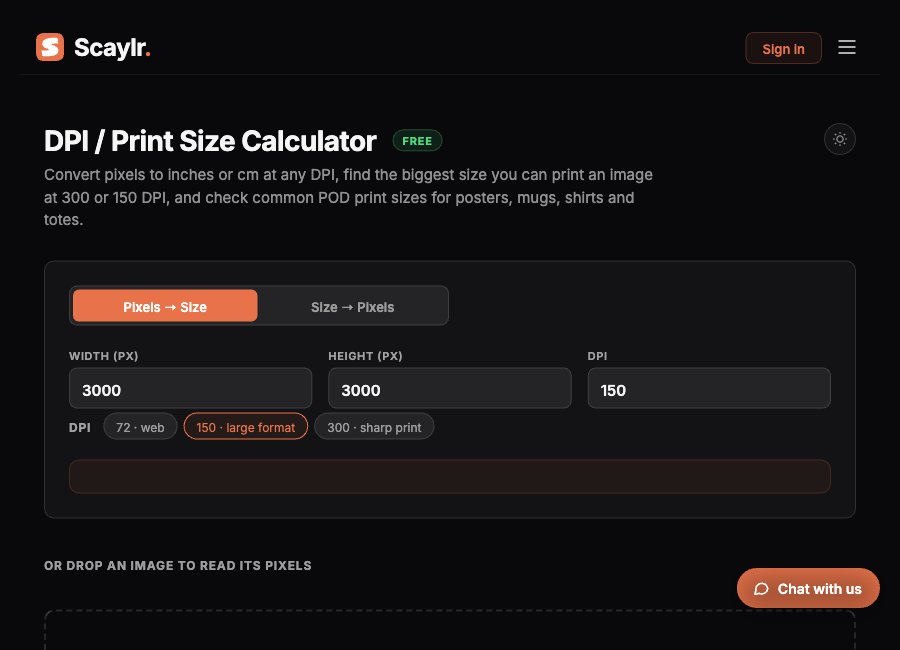
Drop it into the DPI calculator — it reads a file's pixel dimensions directly and tells you the largest size you can print it at 300 or 150 DPI, plus common POD sizes for posters, mugs, shirts and totes, without you doing the division yourself.
How Scaylr's Upscaler Works
Traditional resizing just stretches existing pixels — it doesn't add anything, so text and edges just get softer as the image grows. An AI upscaler instead predicts and rebuilds plausible detail as it enlarges the image, which is why a 4× AI upscale looks noticeably sharper than a plain resize to the same dimensions.
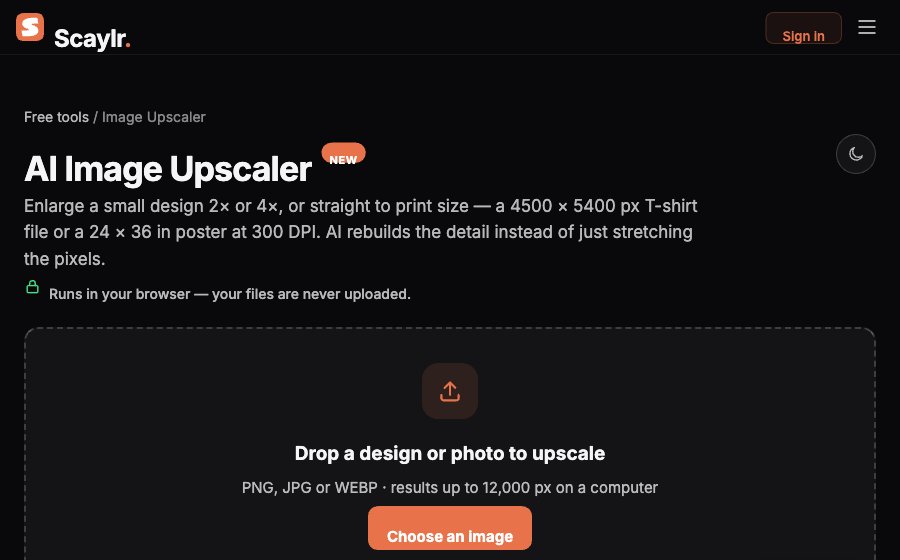
Scaylr's image upscaler runs the AI model at 2×, 4× or 8× (chained as 4× then 2× for very small starting images), then finishes with a precise high-quality resize to your exact target pixel size — so you land on the number you actually need, not just the nearest power of the AI's native scale. The tool shows which part of the result is AI-rebuilt and which is the final resize, and writes the DPI value into the downloaded file.
Drop your design
You'll immediately see its current pixel size and how large it can print at 300 DPI.
Pick 2×, 4×, or Print size
2× and 4× are straightforward multipliers. Print size mode is the faster path for most sellers: choose a T-shirt front, a poster size (8 × 10 up to 24 × 36 in, or A4 through A2) and 300 or 150 DPI — or type an exact pixel size, up to 12,000 px on the longest side.
Let it run
A laptop or desktop with a graphics chip is usually 5-20× faster than a phone. A 1000px design upscaled 4× takes a few seconds on a recent laptop; a full 24 × 36 in poster at 300 DPI can take a few minutes. Keep the tab open and in front while it works.
Download
The file comes back at the exact pixel size and DPI you asked for, transparency preserved if the source had it.
AI upscaling rebuilds plausible detail, it doesn't invent information that was never captured. A blurry or heavily compressed source image will upscale into a sharper-looking but still fundamentally soft result — it won't recover focus that was lost at the original shot. Best results start from a reasonably clean source of at least a few hundred pixels; AI-generated art from tools like Midjourney or DALL·E, which usually comes out at 1024-2048px, is a great candidate since the source is already clean.
Browser Limits Worth Knowing
The upscaler works up to 12,000 px on the longest side in Chrome, Edge or Firefox on a computer — enough for a full 24 × 36 in poster at 300 DPI. Safari on iPhone and iPad allows less, around 4,096 px, and the tool checks what your specific browser can handle before starting so you're not surprised partway through.
Fitting the Upscaled File to an Exact Print Size
Upscaling gets you the right pixel count, but if the file's aspect ratio doesn't already match the poster size you're printing at, you still need to crop or fit it precisely. That's what the Poster Print Resizer is for: pick a standard poster size or type a custom one, choose crop-to-fit or stretch-to-fit, and export a print-ready JPG at the correct resolution in one step.
Run your file through Is My Design Ready? first. It checks pixel size, DPI, transparency and colour mode against Printify, Printful and Gelato's actual requirements before you upload anywhere — a faster way to catch a too-small file than waiting for a supplier's rejection email.
If a design is too small for the size you want to print, don't redraw it — upscale it. Check the current size with the DPI calculator, use print-size mode to jump straight to the pixel count you need, and fit it to the final poster or product size afterward. All three steps are free and run in the browser.
Upscale Your Design to Print Size
2×, 4×, or straight to an exact print size — free, up to 12,000 px, nothing uploaded.
Try the Image Upscaler Free →Frequently Asked Questions
Pixel-size table calculated directly (inches × DPI = pixels); tool specifications checked against the live image-upscaler.html page on 29 September 2026.