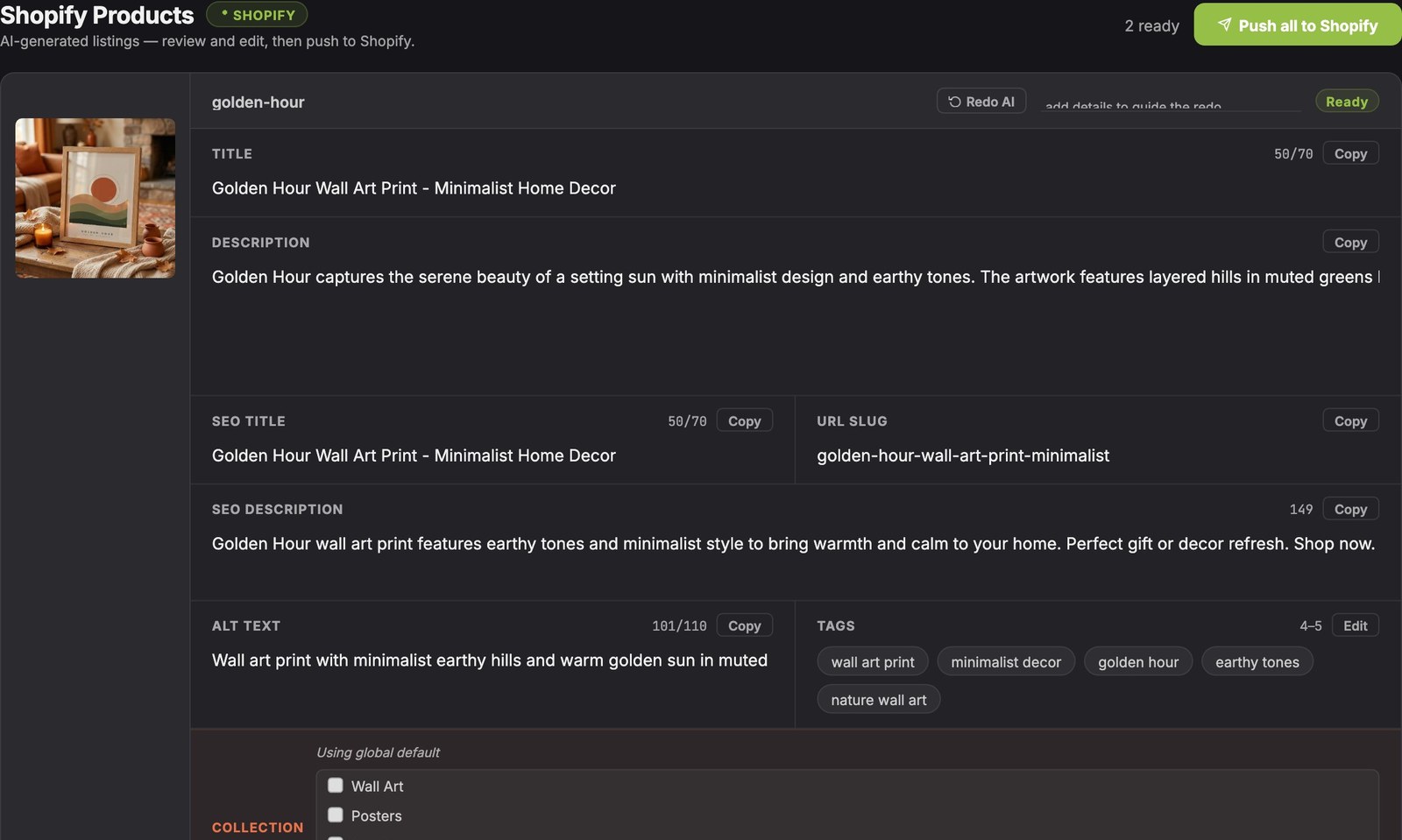
Getting a new design into a Shopify store usually means three separate jobs: making the product photos, writing the listing, and then copying everything into Shopify one product at a time. The Shopify Publisher in Scaylr does all three in one batch: it makes the mockups, writes each listing with AI and publishes the products to your store.
The Shopify Publisher is included with Scaylr Pro. Connect your Shopify store once, add your PSD templates and designs, and Scaylr generates the mockups, writes a title, description, tags, SEO fields and image alt text for every product, and pushes the products to Shopify as drafts, active or unlisted listings. You can create new products or copy variants and pricing from a product you already sell. There's no listing limit on Pro.
What does the Shopify Publisher do?
It turns a folder of designs into finished Shopify products:
- Mockups: every design placed into every template you choose, exactly like the Scaylr studio.
- AI listings: for each design, a product title, description, SEO title, SEO description, URL handle, tags and alt text for the images, written from the mockups.
- Publishing: each product is created in your store with its mockups as the product images, its text, collections and status.
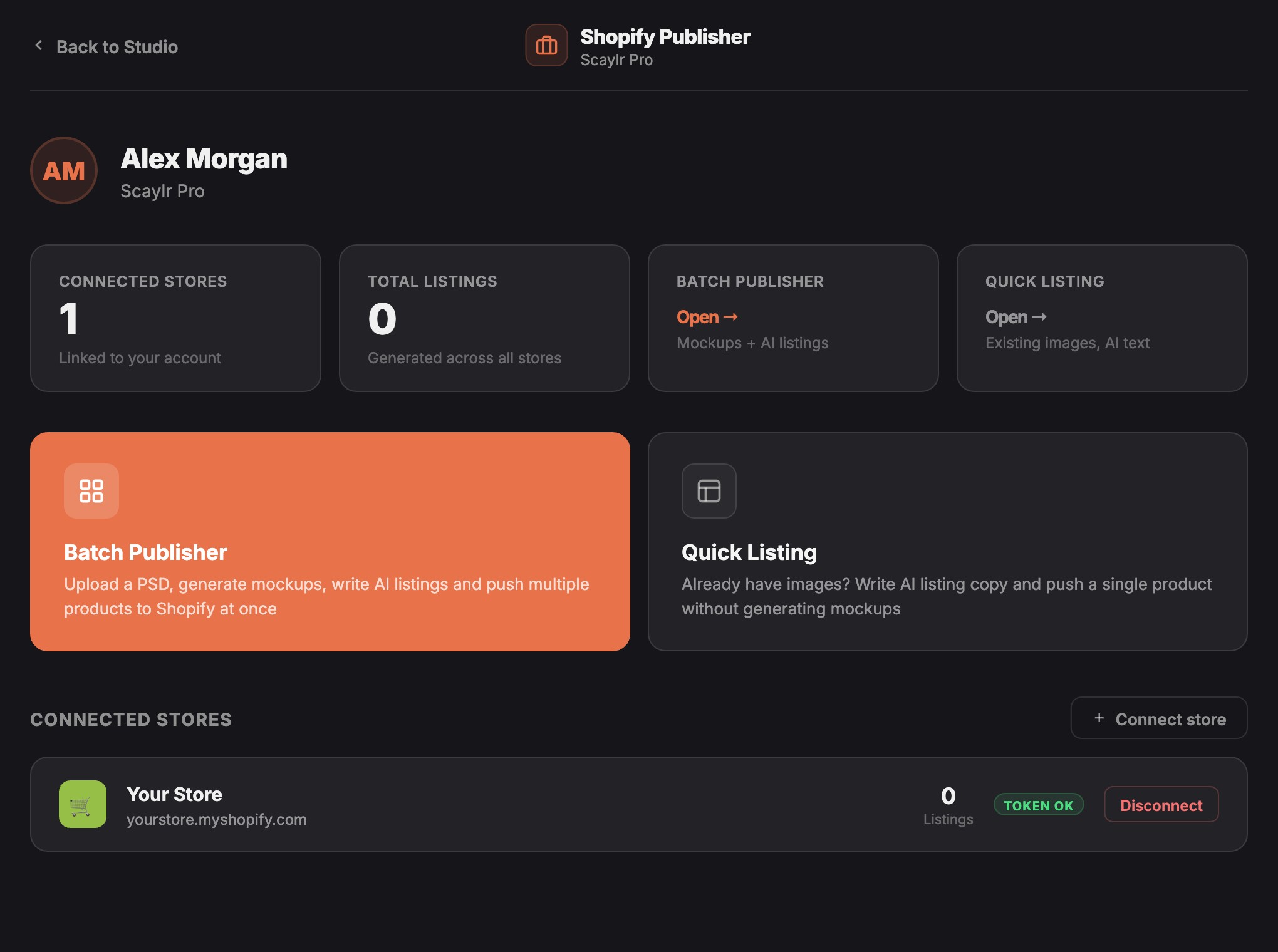
How do you connect your Shopify store?
Open the Publisher
Sign in to Scaylr with a Pro account, open the account menu in the studio and choose Shopify Publisher.
Connect your store
Click Connect store, enter your store address (for example yourstore.myshopify.com) and approve the connection on Shopify. Scaylr asks only for permission to read and create products.
Choose how to publish
Batch Publisher makes mockups and listings for many designs at once. Quick Listing is for when you already have photos and just want the AI listing and a one-click publish.
How do you publish a batch of products?
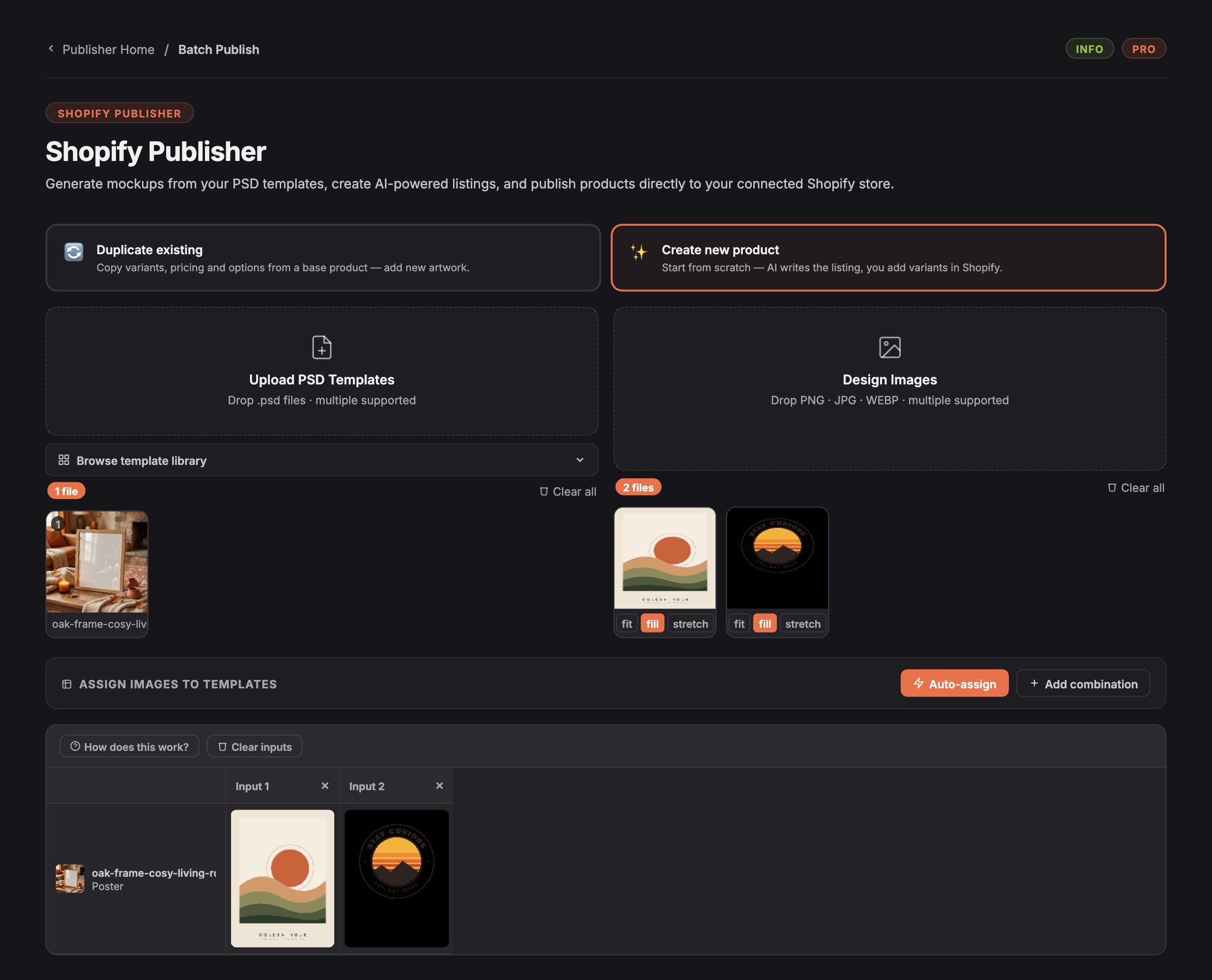
Pick new or duplicate
Create new product starts each product from scratch: AI writes the listing and you add variants in Shopify. Duplicate existing copies the variants, pricing and options of a product you already sell, so a new design becomes a complete product with sizes and prices in place.
Add templates and designs
Upload your own PSD mockups or pick from the free template library, then drop in your designs. Auto-assign pairs every design with every template.
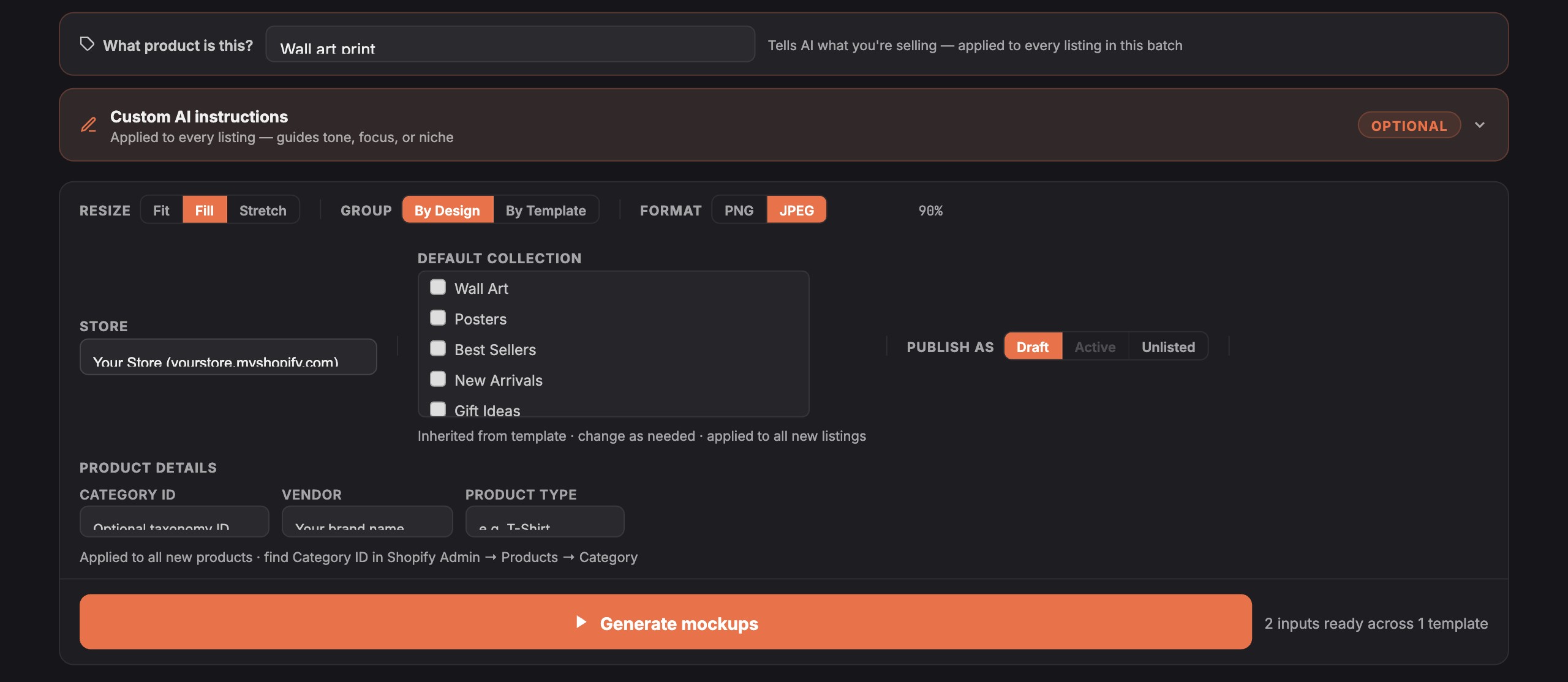
Set the batch details once
Tell the AI what you're selling (for example "wall art print"), optionally add your own AI instructions for tone or niche, and set the store, default collection, vendor, product type, category and whether products go live as Draft, Active or Unlisted. A description footer (size guide, shipping info, care instructions) can be added to every product automatically.
Generate, review and push
Click Generate mockups. Scaylr makes the mockups and writes a listing for each design. Every field can be edited, Redo AI rewrites a listing with your extra guidance, and each product can go to a different collection. Push products one by one, or all at once with Push all to Shopify.
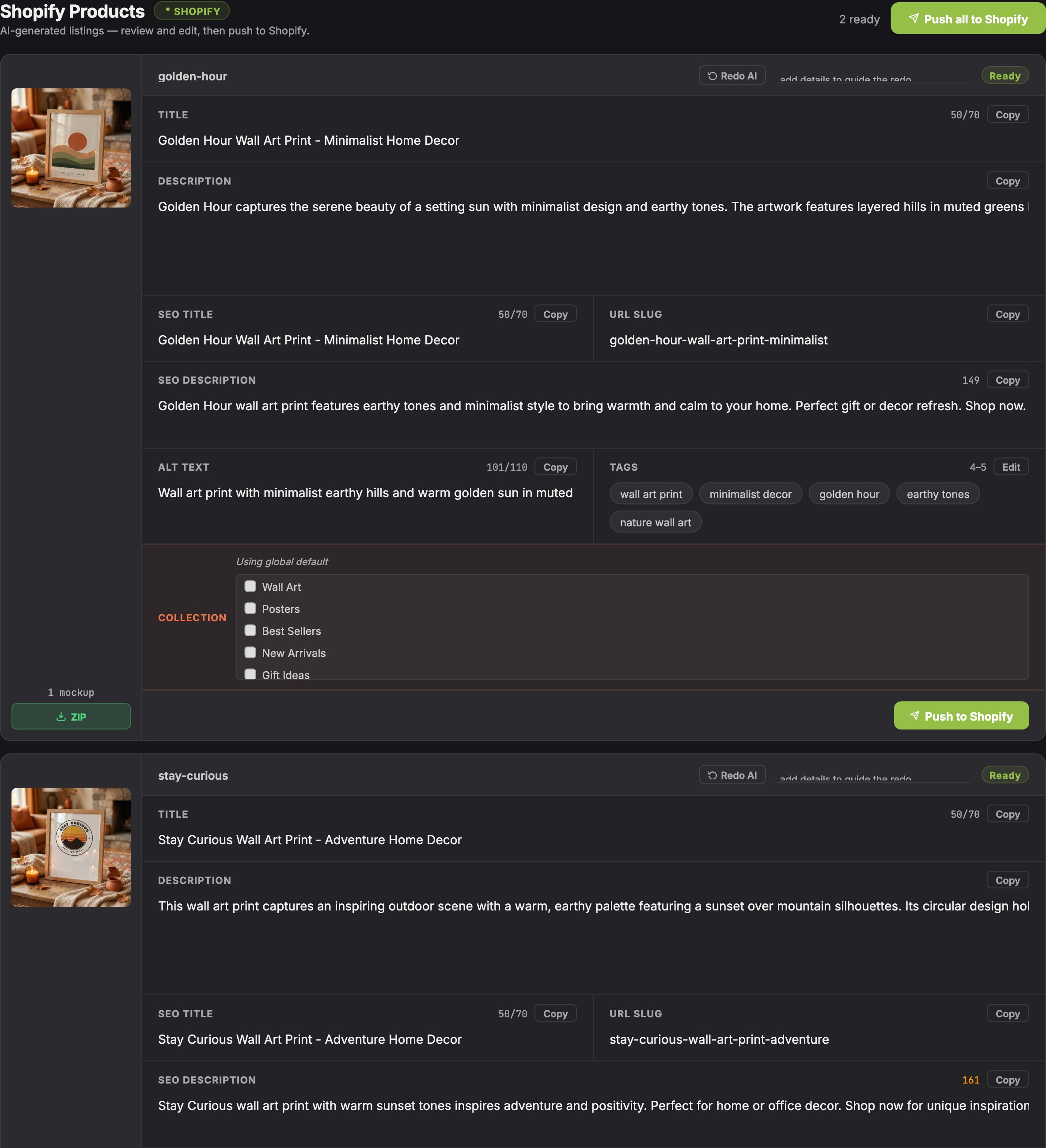
Publish your first batch as Draft, check a few products in Shopify admin, then switch to Active for the next batches once you're happy with the results.
What does the AI write for each product?
| Field | What you get |
|---|---|
| Title | A clear product title with the main keyword, up to 70 characters |
| Description | A product description based on the design, plus your footer |
| SEO title and description | Search-friendly versions sized for Google results |
| URL handle | A clean web address for the product |
| Tags | Keywords for your store's search and filters |
| Image alt text | Descriptions of the mockups, good for accessibility and image search |
When should you use Quick Listing?
If you already have product photos (from a supplier, a photoshoot or an earlier batch), open Quick Listing, upload the images and let the AI write the listing. You can create a brand-new product or base it on an existing one, edit the text and SEO fields, and push it to Shopify in a minute, without generating mockups.
Use one set of templates per product type (for example five poster scenes) and reuse it for every batch. Your whole catalogue then has consistent product photos, which makes the store look professional. For picking scenes, see our guide to product mockups for e-commerce.
Is the Shopify Publisher free?
It's included in Scaylr Pro at no extra cost, with unlimited mockups and no limit on how many products you publish. Pro comes with a 7-day free trial. More about selling this way in our guide to print on demand on Shopify, or see the overview on the Scaylr for Shopify page.
Publish your next collection in one batch
Mockups, AI listings and Shopify publishing, all included with Pro. Try it free for 7 days.
See Pro Plans →