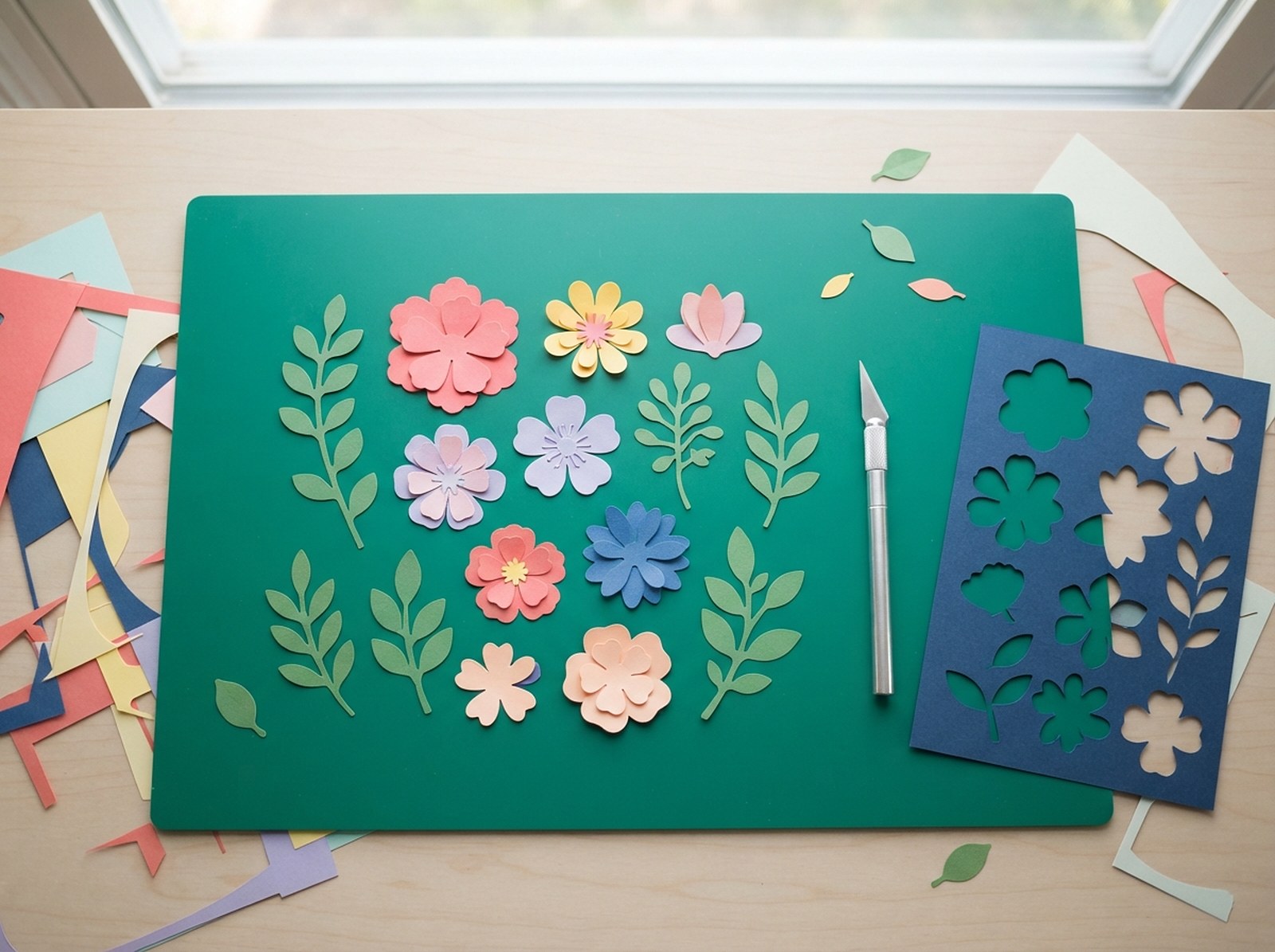
A PNG and an SVG can look identical on screen and behave completely differently the moment you try to cut one. Cricut and Silhouette machines don't "see" a picture — they follow a path, and only one of those two formats actually contains one. This is what an SVG cut file is, why it matters, and how to get or make one without design software.
An SVG cut file is a vector graphic whose outline is stored as a mathematical path — the exact line a cutting machine's blade follows — instead of a grid of colored pixels like a PNG or JPG. Cricut Design Space and Silhouette Studio both cut along that vector path; a flat raster image has no path of its own, so the software has to trace one first. You can convert an existing PNG/logo into a cut-ready SVG, or trace a sticker border directly into one, both free and in your browser, without owning Illustrator or a cutting machine's paid design software.
What Makes a File "Cut-Ready"?
Every image file on a computer is one of two fundamentally different things:
- Raster (PNG, JPG): a fixed grid of colored pixels. Zoom in far enough and you see individual squares. There's no concept of "the edge of the design" stored in the file — just where colors happen to change.
- Vector (SVG): a set of mathematical paths — lines and curves defined by coordinates, not pixels. An SVG can be scaled to any size with no loss of sharpness, because the shape is recalculated, not stretched.
A cutting machine's blade needs an actual path to follow — a line it can trace physically through vinyl, paper or cardstock. A raster image simply doesn't contain that information, no matter how high its resolution. (Design Space can trace one for you when you save an uploaded PNG or JPG as a cut image, but how clean that path is depends on the image.) This is the entire reason "cut file" and "SVG" are so often used interchangeably in the Cricut/Silhouette world: SVG is the format that actually carries a cuttable path.
Resolution (pixel count) and cuttability are unrelated. A 4000 × 4000px PNG is not more "cut-ready" than a 400 × 400px one — neither has a path at all. Only converting to a proper vector format adds one.
How Do You Turn a PNG Into an SVG Cut File?
If your design already exists as a PNG — a logo, a piece of clip art, hand-drawn line art you've scanned — you don't need to redraw it in Illustrator. Tracing converts the raster shape into a vector path automatically:
Drop the PNG into a converter
The PNG to SVG Converter traces the image in your browser using imagetracer.js, an established open-source tracing library, running in a background Web Worker so the page stays responsive.
Choose "1 colour (cut file)" mode
This produces a single cut path rather than multiple color layers — the mode Cricut and Silhouette expect for a straightforward cut shape. If the source PNG has a white background instead of real transparency, turn on "Remove white background" first so near-white pixels become transparent and only the design gets traced.
Check the preview, then download
The side-by-side preview shows exactly what will be traced before you commit. Download the SVG, then in Cricut Design Space choose Upload → Upload image and select it — it arrives as a single cut layer you can resize freely without losing sharpness. In Silhouette Studio, opening an SVG needs Designer Edition or higher; the free Basic Edition doesn't open SVG files.
Tracing works best on logos, lettering, clip art and flat illustrations with clear edges and limited colors. You can trace a photo, but the result is a posterized illustration, not a faithful photo reproduction — photos, gradients and JPG compression noise create far more nodes (tiny path segments) than a cutting machine needs or wants.
Why Does Your SVG Have Way Too Many Nodes?
A common frustration: tracing a photo or a busy, textured image produces an SVG with thousands of tiny, jagged shapes instead of one clean outline. This happens because tracing turns every visible edge into curves — and a photo has far more visible edges than a flat logo does.
Fixes: lower the detail setting, raise the smoothing, reduce the number of colors, or remove the background before tracing. For cutting machines specifically, aim for a design with a few thousand nodes or fewer — simpler shapes cut more cleanly and process faster in Design Space.
How Do You Make a Cut File From Scratch for Stickers and Bordered Shapes?
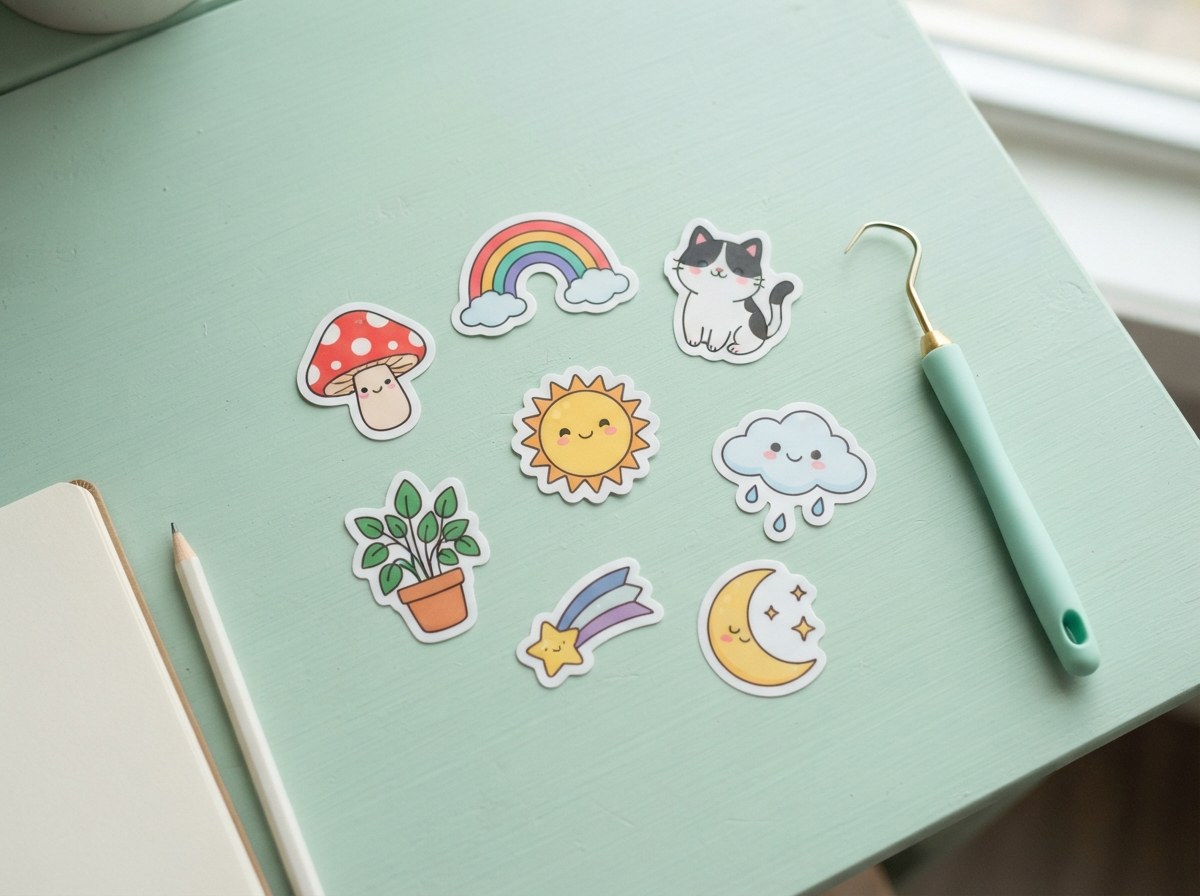
Not every cut file starts as an existing PNG to trace — a lot of sticker sellers are building a bordered shape (a white or colored outline around artwork) from a transparent design, which needs both a printed border and a matching cut line around it. That's a different job from tracing an existing outline:
Start from a transparent PNG
The Sticker Border Maker grows a smooth, evenly-thick border around your design using a real distance transform (measuring the true distance from every pixel to your design's edge) rather than a simple pixel-by-pixel dilate — which is why the border stays rounded on curves and corners instead of turning jagged.
Add bleed if you're printing and cutting yourself
Bleed is extra printed color that extends past the cut line, so a slightly imprecise blade still cuts through color instead of exposing a thin white sliver. The standard is 1/8in (0.125in) on every side — turn it on for home printing or a print-and-cut shop, leave it off if a sticker printer's own upload tool adds bleed automatically.
Export the matching cut-line SVG
The tool traces the outer edge of your border into an SVG cut line — the same kind of file Cricut Design Space, Silhouette Studio and most print-and-cut services expect — alongside the printable PNG.
If you're printing a full sheet of the same sticker, use the sheet-layout option to fit as many copies as possible on US Letter or A4 at 300 DPI with spacing between them, and export one sheet PNG plus one matching SVG with a cut line for every copy already positioned — instead of arranging duplicates by hand.
Should You Use Free SVG Cut Files or Make Your Own?
| Free/marketplace SVGs | Making your own | |
|---|---|---|
| Uniqueness | Used by many other sellers | Original to your shop |
| Speed | Instant if it already exists | A few minutes to trace or build |
| Licensing risk | Varies — always check the license | None — it's your own design |
| Cost | Often free, sometimes paid | Free with a browser-based converter |
For a one-off personal project, a free marketplace SVG is often the fastest path. For anything you plan to sell — stickers, decals, cut-file listings of your own — converting your own artwork avoids licensing questions entirely and keeps the design unique to your shop.
Turn Your Design Into a Cut File Free
Trace a PNG into an SVG, or build a full sticker border and cut line from a transparent design — no software to install.
Convert My PNG to SVG →Sources: Cricut Help: How to upload images into Design Space, Silhouette America: Silhouette Studio software (checked October 2026).