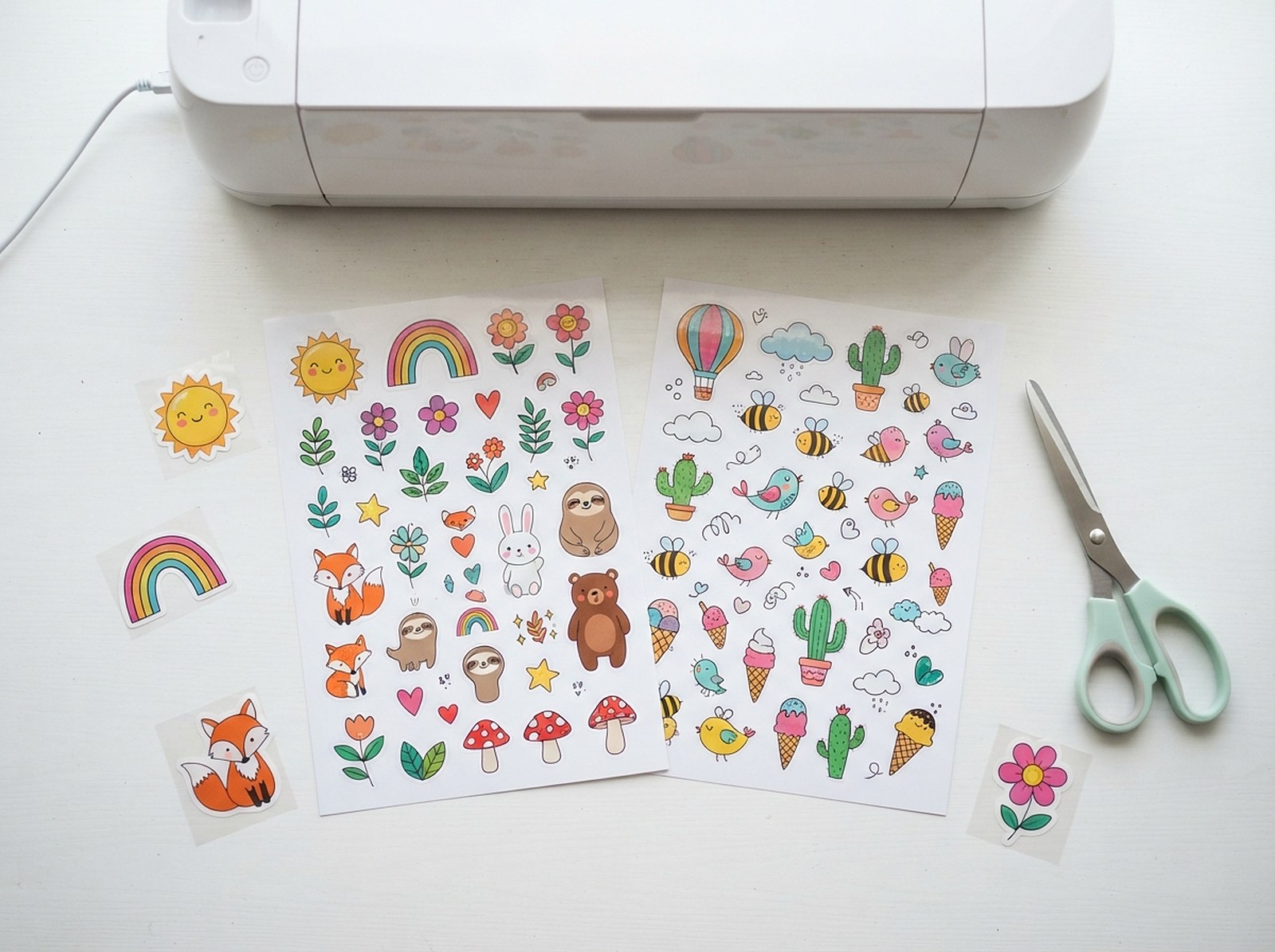
Print-and-cut stickers are one of the most forgiving product types on Etsy to start with — no smart objects, no sizing charts, just artwork and a cut line — but the files that actually print cleanly need three specific boundaries most first-time sticker sellers have never heard of. Get them wrong and the result is a white sliver around every sticker or an edge that cuts straight through part of the design.
A print-and-cut sticker file needs three boundaries, not one: the artwork itself, a bleed of 0.125 in (1/8 inch) extending past the cut line so no white edge shows if the cut shifts slightly, and a safe margin of about the same distance inside the cut line where text or logo details shouldn't sit. Kiss-cut stickers are cut through the sticker layer only, leaving a shared backing sheet; die-cut stickers are cut all the way through, producing an individual sticker. Print at 300 DPI minimum, and confirm whether your printer or supplier expects RGB or CMYK before exporting.
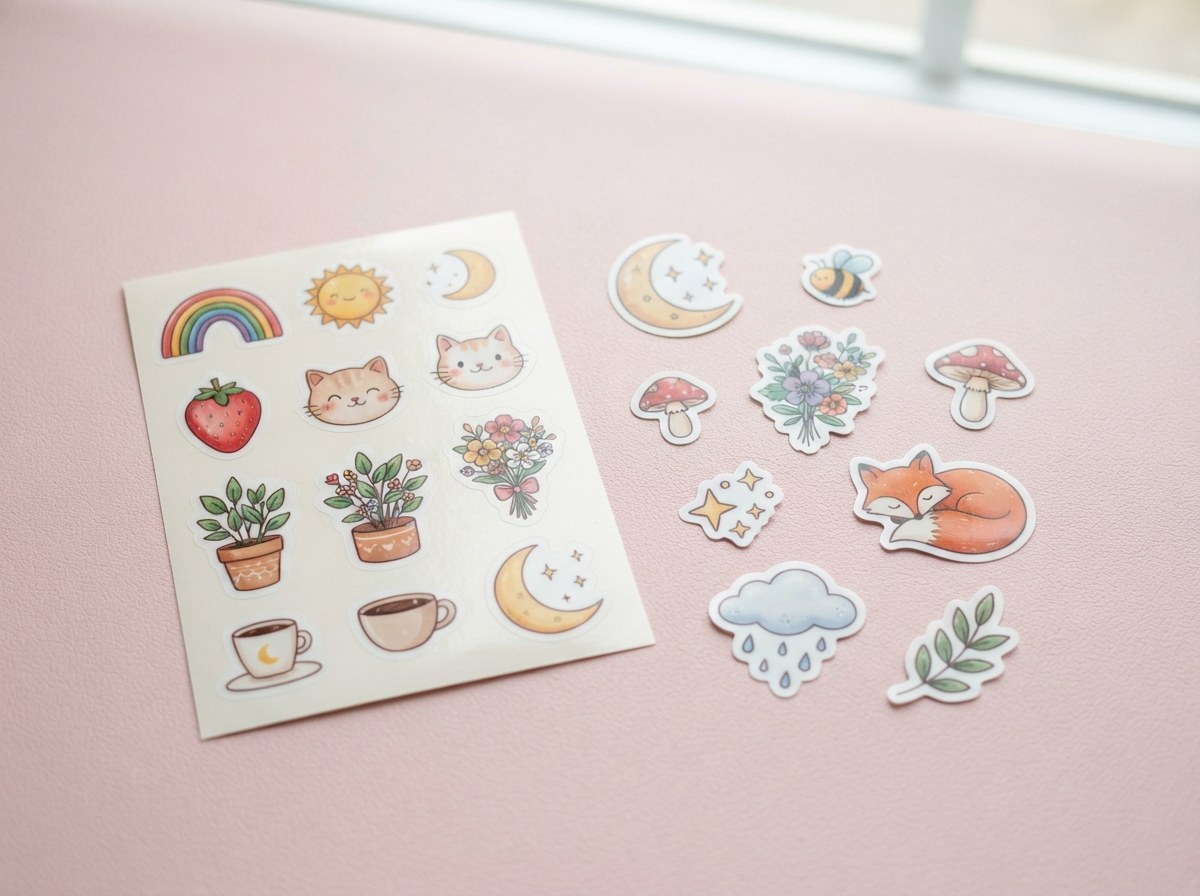
Kiss-cut vs die-cut: what the buyer actually gets
| Kiss-cut | Die-cut | |
|---|---|---|
| Cut depth | Through the sticker layer only | Through the sticker and the backing |
| Backing | Shared sheet — stickers peel off individually | Individual — each sticker is its own piece |
| Common use | Sticker sheets, planner stickers, multi-design sets | Single stand-alone stickers, laptop/bottle stickers |
| Buyer experience | Peels one at a time off the shared backing | Already separated, ready to apply straight away |
Neither is objectively better — the right choice depends on the product. A sheet of 12 small matching stickers is a natural kiss-cut; a single 4-inch logo sticker sold on its own usually makes more sense die-cut.
Bleed and safe margin, explained properly
These two boundaries solve two different problems, and mixing them up is the most common setup mistake:
- Bleed (0.125 in / ~3mm past the cut line): printing and cutting are two separate mechanical processes, and even a fraction-of-a-millimeter shift between them is normal. If your artwork ends exactly at the cut line with no extra margin, that shift shows up as a thin white sliver of uncut paper around the edge. Bleed means your background color or artwork extends slightly past where the cut will actually happen, so any shift is invisible.
- Safe margin (roughly the same 0.125 in, inside the cut line): the opposite problem — if text or a logo sits too close to the cut line, the same small mechanical shift can slice through it instead of around it. Safe margin keeps anything important a little further from the edge.
Bleed and safe margin are not the same measurement applied in the same direction — bleed extends artwork outward past the cut line, safe margin pulls critical content inward from it. A file needs both, on opposite sides of the same line.
File setup checklist
- 300 DPI minimum at final print size — the same standard as any print product.
- A real cut line, ideally a clean vector path, separate from the printed artwork layer — this is what the cutter actually follows, not the visual edge of the design.
- Color mode: check with your specific printer or POD supplier. Home printers and many POD workflows accept RGB and convert automatically; dedicated commercial print shops sometimes want CMYK supplied directly. Don't assume — ask.
- Rounded corners over sharp points where possible — tight interior corners are one of the most common places a physical cutter snags or tears.
Printing it yourself vs a print-on-demand supplier
| Print at home | POD sticker supplier | |
|---|---|---|
| Control over cut precision | Depends on your printer + cutter (Cricut/Silhouette or similar) | Consistent, commercial-grade cutting |
| Upfront cost | Low if you already own a cutting machine | Per-unit cost, no equipment needed |
| Turnaround per order | You produce and ship each order yourself | Supplier prints and ships on order, like other POD products |
| File requirements | Whatever your own printer/cutter accepts | Follow the specific supplier's spec sheet — bleed and color mode requirements vary by supplier |
Either path uses the same bleed, safe-margin and cut-line fundamentals from this guide — a POD supplier's spec sheet may ask for slightly different exact numbers, so always check the specific supplier's requirements before a first bulk order, even if your file already follows the general standard.
Turning one PNG into a print-ready file
Start with a clean transparent PNG
Your sticker artwork with a transparent background, at 300 DPI or higher, is the starting point — the shape of the visible artwork is what determines the cut line, so a clean edge (no stray pixels or antialiasing halos) matters.
Add the border and cut line
The Sticker Border & Cut Line Maker takes that transparent PNG, adds a smooth rounded border, and outputs a proper print-then-cut SVG cut line — with an option to add bleed automatically rather than doing the math by hand.
Lay out a full sheet
Rather than exporting one sticker at a time, the same tool can arrange a full sticker-sheet layout for Letter or A4, spacing multiple copies (or multiple designs) with bleed and safe margin already accounted for between them.
Need a true vector path instead of a raster border?
If your source artwork is a raster image and you need a genuinely clean vector cut path — for a die-cut machine or a supplier that requires vector files — PNG to SVG converts it first.
What to include for the buyer
A few small additions that don't change the file setup but noticeably reduce return/refund requests:
- A backing card or insert noting the material (vinyl, matte, glossy) and whether it's waterproof/dishwasher-safe if that applies — buyers often can't tell from a photo alone.
- Application instructions for kiss-cut sheets specifically, since peeling an individual sticker off a shared backing without lifting its neighbors is a real first-time learning curve.
- Accurate size stated in the listing, measured from the finished cut sticker, not the pre-cut artwork canvas — the two are not the same once bleed is trimmed away.
Order (or print) one physical test sheet before a full production run. Bleed and safe-margin math is reliable on screen, but the only way to confirm a specific printer/cutter combination is actually aligned is to hold a real cut sticker in your hand.
Turn your artwork into a print-ready sticker file
Upload a transparent PNG, get a rounded border, a proper cut line SVG, optional bleed, and a Letter/A4 sheet layout — free, nothing uploaded to a server.
Open the Sticker Border & Cut Line Maker →