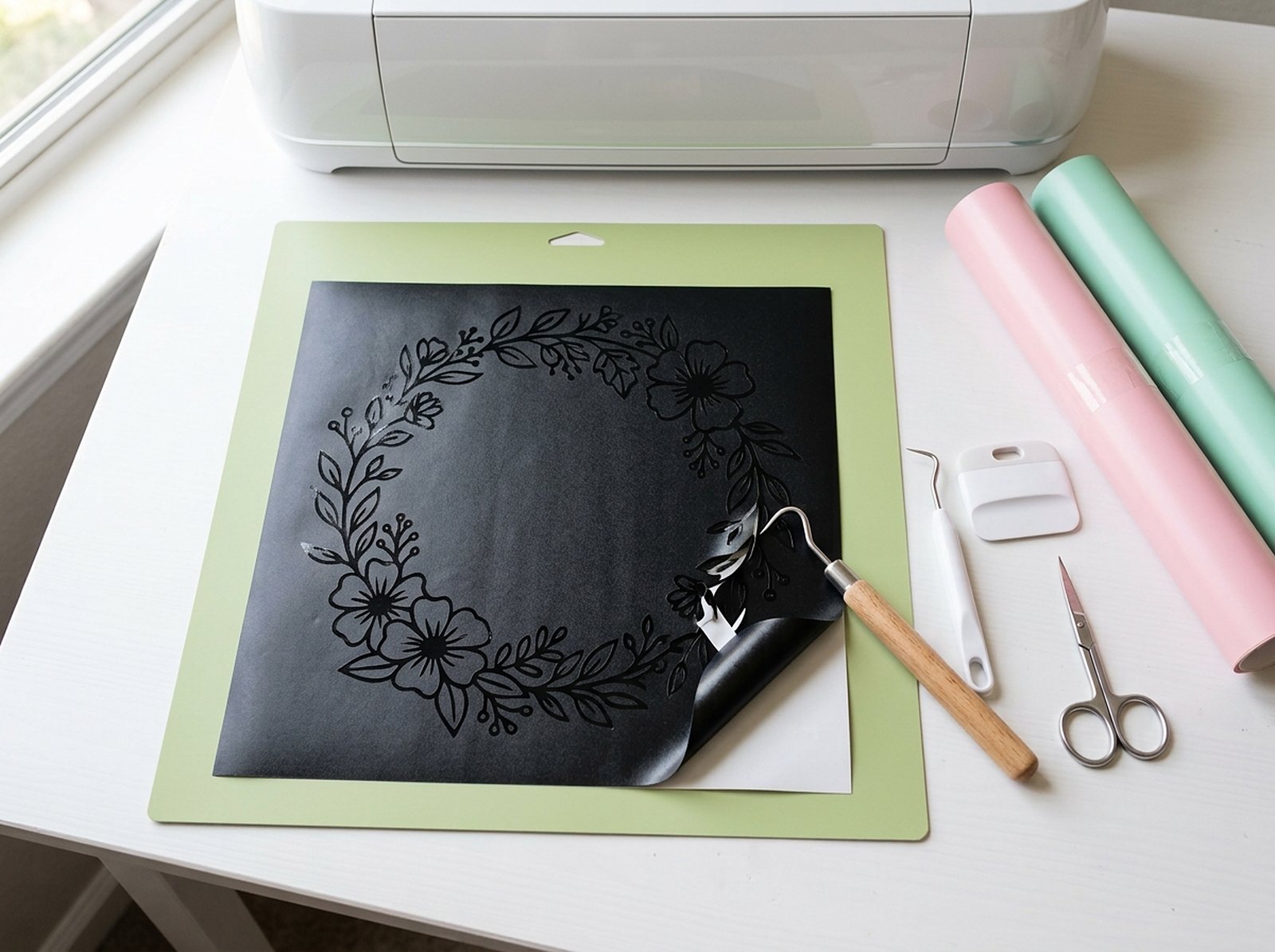
Cricut Design Space and Silhouette Studio will happily let you upload a PNG — but the blade follows a vector path, and a PNG doesn't contain one, no matter how high-resolution it is. Design Space can trace a path for you when you save an upload as a cut image, but if your design only exists as a flat image (a logo, a piece of clip art, a hand-drawn sketch you scanned), converting it to SVG gives you a clean cut path that scales to any size.
Cricut and Silhouette machines cut along a vector path — a PNG is just colored pixels with no path information of its own. Design Space can trace a PNG into a cut image on upload, but an SVG gives you a cleaner path that scales without losing sharpness. Converting is a one-step job: upload your PNG to a browser-based tracer, choose "1 colour (cut file)" mode for a clean single cut path, and download an SVG ready for Design Space or Silhouette Studio. Scaylr's PNG to SVG Converter does this free, in your browser, with no software install.
Can Design Space use a plain PNG as a cut file?
Every image file is one of two fundamentally different things. A raster file (PNG, JPG) is a fixed grid of colored pixels — zoom in far enough and you see individual squares, with no concept of "the edge of the shape" stored anywhere in the file, just wherever colors happen to change. A vector file (SVG) stores an actual mathematical path — a line the blade can physically follow through vinyl, paper, or cardstock.
You can absolutely upload a PNG into Design Space as a print then cut image — Cricut will print it and then cut around it. Design Space can also clean up an uploaded PNG and save it as a cut image, tracing a path for you. How clean that path is depends on the image; a vector file carries a precise path from the start and scales to any size.
A 4000×4000px PNG isn't more "cut-ready" than a 400×400px one — neither contains a path. Only converting to vector adds one, regardless of how sharp or high-resolution the source image was.
How do you convert a PNG to a cut-ready SVG?
Upload your PNG
The PNG to SVG Converter traces your image using imagetracer.js, an established open-source tracing library, running in a background Web Worker in your browser — nothing uploads to a server, and the page stays responsive even on a large image.
Choose "1 colour (cut file)" mode
This produces a single continuous cut path instead of multiple color-separated layers — the format Cricut and Silhouette expect for a straightforward cut shape (a sticker outline, a decal, a simple silhouette). If your source image has a plain white background instead of real transparency, turn on "Remove white background" first so only the actual design traces, not the square around it.
Preview, then download and upload to Design Space
A side-by-side preview shows exactly what will be traced before you commit. Download the SVG, then in Cricut Design Space go to Upload → Upload Image and select it — it arrives as a single cut layer you can resize freely without losing sharpness, since it's now a real vector. In Silhouette Studio, opening an SVG needs Designer Edition or higher; the free Basic Edition doesn't open SVG files.
Tracing is built for logos, lettering, clip art, and flat illustrations with clear edges and a limited number of colors. You can trace a photograph, but the result is a posterized illustration, not a faithful photo reproduction — photos, gradients, and JPG compression noise all create far more path nodes (tiny curve segments) than a cutting machine needs or wants.
How do you fix an SVG with too many nodes?
A common frustration: tracing a busy or textured image produces an SVG full of thousands of tiny, jagged shapes instead of one clean outline. This happens because tracing turns every visible edge into a path — and a photo or noisy scan has far more visible edges than a flat logo does. Fixes, in order of impact: lower the tracer's detail setting, raise smoothing, reduce the source image's color count before tracing, or remove the background first so the tracer only has the actual subject to work with. For cutting machines, aim for a design with a few thousand nodes or fewer — simpler shapes cut faster and more cleanly.
Should you convert PNG to SVG or draw the cut path by hand?
| Tracing a PNG | Drawing manually in Illustrator/Inkscape | |
|---|---|---|
| Speed | Seconds, if the source is a clean logo/clip art | Minutes to hours depending on complexity |
| Skill required | None — upload and click | Vector drawing/pen-tool experience |
| Accuracy on complex shapes | Good on clean art, messy on photos | Exact, but time-consuming to get there |
| Cost | Free, in-browser | Free with Inkscape, paid with Illustrator |
For the vast majority of Etsy sellers making cut files from a logo, a phrase in a font, or existing flat artwork, tracing gets you a clean result in far less time than manually redrawing paths.
Turn your design into a cut-ready SVG
Free, in your browser, no design software — trace a PNG into an SVG Cricut and Silhouette can actually follow.
Try the PNG to SVG Converter Free →Sources: Cricut Help: How to upload images into Design Space, Cricut Help: How to Print Then Cut in Design Space, Silhouette America: Silhouette Studio software (checked October 2026).